Shipping Rules provide ShipStation API with a set of criteria to determine which carrier and service to apply to a shipment. This allows you to automate the selection of carrier and service according to your specific business needs.
If you are new to Shipping Rules, be sure to read our Introduction to Shipping Rules page.
Currently, you must create your shipping rules in your account dashboard. Once created, each rule will have a shipping rule ID that you can use to automate carrier and service selection when creating shipments or purchasing labels.
For each shipment, ShipStation API will evaluate the rule statements against the shipment details and apply the appropriate carrier_id and service_code to the shipment for you.
Shipping Rules are available exclusively for ShipEngine (ShipStationAPI) accounts and are not supported on standard ShipStation accounts.
While Shipping Rules function similarly to Automation Rules, they are distinct features:
- ShipStation API accounts use Shipping Rules (and do not have Automation Rules).
- ShipStation (SS) accounts do not support Shipping Rules and must instead use alternatives like Automation Rules or Rate Shopper to achieve similar functionality.
NOTICE:
We will soon be adding a shipping rules endpoint so you can also create rules programmatically. Check back soon for details on using this new endpoint.
To create a shipping rule:
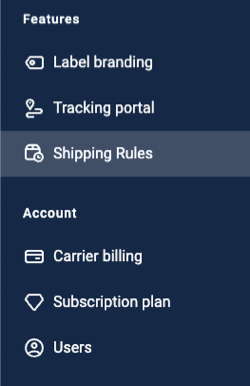
- Log in to your account dashboard and go to Shipping Rules.
- Click the Create rule button.
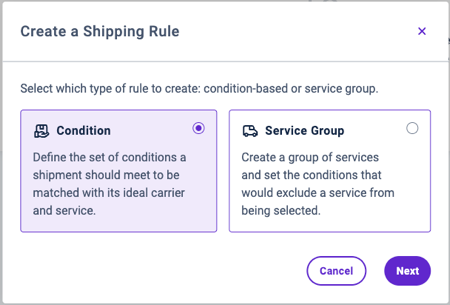
- Choose the type of rule you wish to create, condition or service group.
- Enter a name for your rule (each rule requires a unique name).
- Create the statements with the conditions you require (see below sections for details on creating each type of rule).
With condition-based rules, you define explicit sets of conditions the shipment must meet for the service defined in the statement to be allocated to that shipment.
To create a condition-based rule:
- Fill in the first condition for Statement 1.
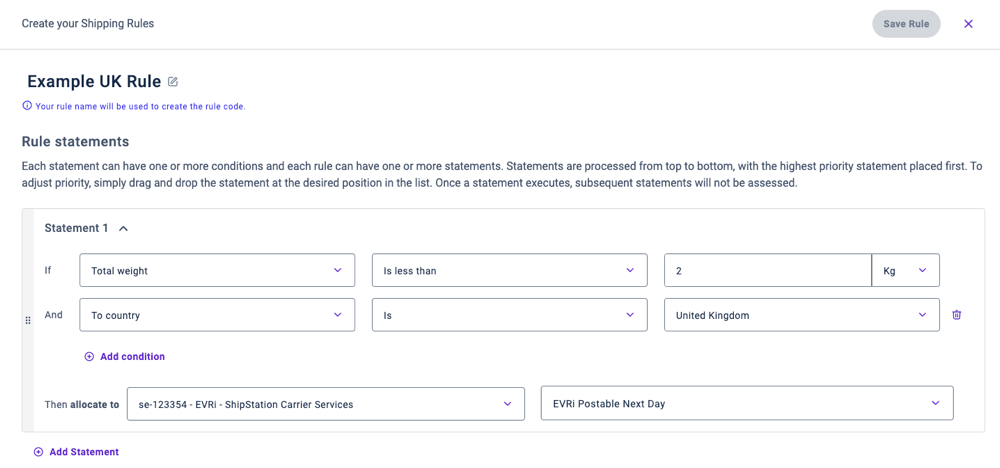
- Add more conditions if needed. Remember, additional conditions behave as AND statements.
- Set the carrier and service that should apply to shipments meeting the statement conditions in the allocate fields.
- Add more statements if needed. Remember, additional statements behave as ELSE IF statements.
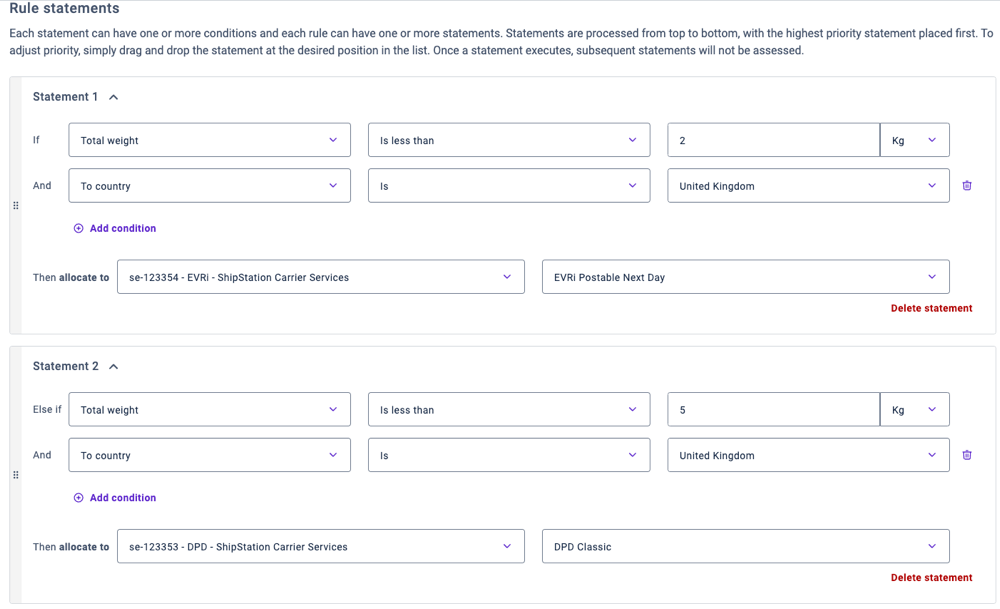
- Set the default carrier and service that will apply if the shipment does not meet the conditions for any of the rule statements.
- Save the rule.
With service group rules, you first create a list of services in a prioritized order. Then, you create "exclusion statements" with conditions that will exclude a service from the shipment if the shipment meets the statement conditions.
To create a service group rule:
- Choose a carrier and select which of that carrier's services to include in your priority list.
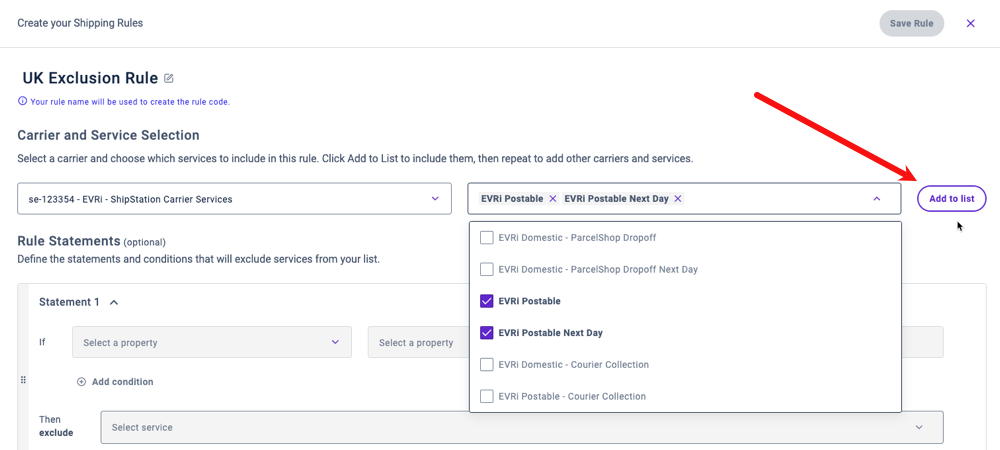
- Click the Add to list button to add this set of services to the list.
- (Optional) Continue to add services to your priority list, a carrier at a time, until you have the full list of services you wish this rule to contain.
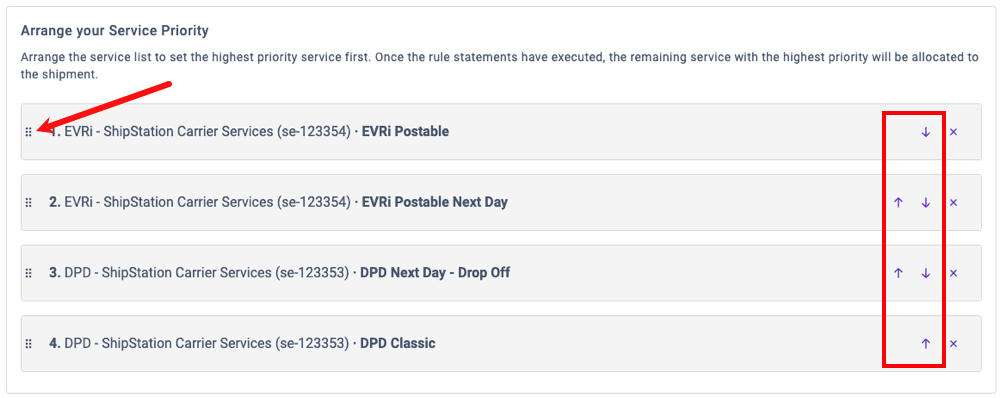
- Arrange the priority of the services in your list. You can drag and drop the services into the desired order, or use the up/down arrows to adjust the position of a service in the list.
- Fill in the first condition for Statement 1.
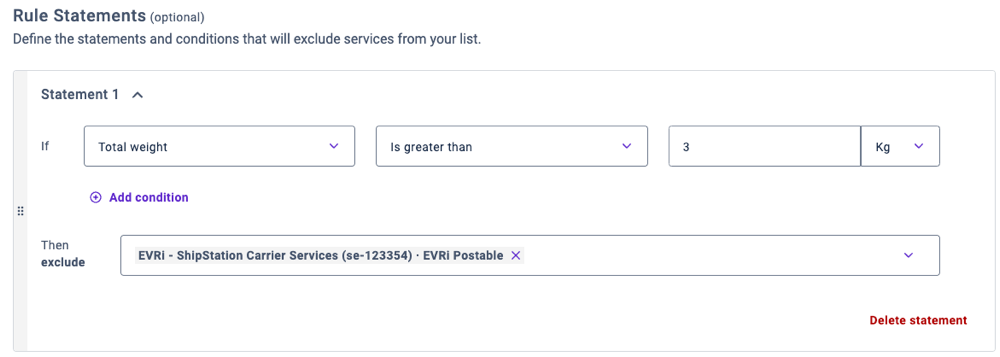
- Add more conditions if needed. Remember, additional conditions behave as AND statements.
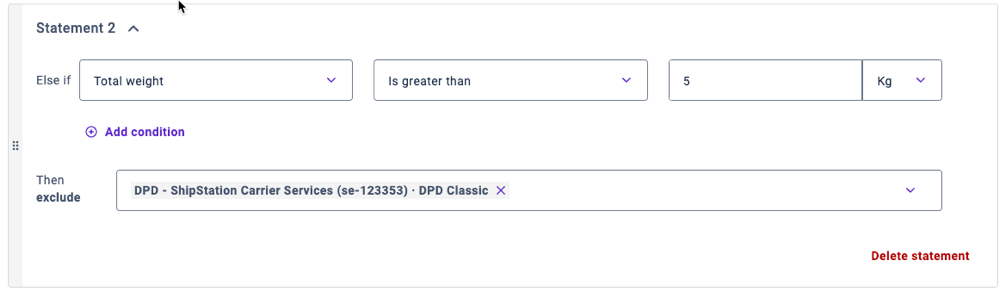
- Choose which services to exclude from shipments that meet the statement conditions.
- Add more statements if needed. Remember, additional statements behave as ELSE IF statements.
- Save the rule.
Dynamic Ordering
Service Group Rules can use dynamic ordering (Cheapest or Fastest) to automatically rank eligible services in real time based on live rate or transit data. Learn about the requirements, USA carrier restrictions, and how it impacts your existing lists: Configuring "Order Services By" in Service Group Rules.
Once you have created your shipping rules, you will use the shipping_rule_id as a path parameter in the dedicated endpoint to purchase labels. For creating shipments, you can still include the shipping_rule_id in the shipment object for the Create Shipment endpoint.
When purchasing a label with a shipping rule, you must NOT include carrier_id, service_code, or shipping_rule_id in the shipment object — the shipping rule determines these automatically.
ShipStation API will evaluate the shipping rule provided in the request to determine the carrier_id and service_code that should apply to the shipment. Both will then be included in the corresponding response.
This is an example of the shipment object in a request for Creating a Shipment.
POST /v1/shipments/
POST /v1/shipments HTTP/1.1
Host: api.shipengine.com
API-Key: __YOUR_API_KEY_HERE__
Content-Type: application/json

{
 "shipments": [
  {
   "shipping_rule_id": "se-49",
   "ship_to": {
      "address_line1": "200 Grays Inn Road",
      "city_locality": "London",
      "postal_code": "WC1X 8XZ",
      "country_code": "GB",
      "name": "John Smith",
      "phone": "+44 020 5555 5555",
      "email": "myemail@test.com"
    },
   "ship_from": {
      "address_line1": "Victoria Embankment",
      "city_locality": "London",
      "postal_code": "SW1A 2JF",
      "country_code": "GB",
      "name": "Norman Shaw",
      "phone": "+44 020 7219 4272",
      "email": "youremail@test.com"
    },
   "packages": [
     {
      "package_code": "package",
      "weight": {
        "value": 1.5,
        "unit": "kilogram"
       },
      "dimensions": {
        "height": 6,
        "width": 5,
        "length": 15,
        "unit": "centimeter"
      }
    }
   ]
  }
 ]
}This is an example of the request for Purchasing a Label using a shipping rule. The shipping_rule_id is passed as a path parameter, and the shipment object must NOT include carrier_id, service_code, or shipping_rule_id.
POST /v1/labels/shipping_rules/{shipping_rule_id}
POST /v1/labels/shipping_rules/se-49 HTTP/1.1
Host: api.shipengine.com
API-Key: __YOUR_API_KEY_HERE__
Content-Type: application/json

{
 "shipment": {
   "ship_to": {
      "address_line1": "200 Grays Inn Road",
      "city_locality": "London",
      "postal_code": "WC1X 8XZ",
      "country_code": "GB",
      "name": "John Smith",
      "phone": "+44 020 5555 5555",
      "email": "myemail@test.com"
    },
   "ship_from": {
      "address_line1": "Victoria Embankment",
      "city_locality": "London",
      "postal_code": "SW1A 2JF",
      "country_code": "GB",
      "name": "Norman Shaw",
      "phone": "+44 020 7219 4272",
      "email": "youremail@test.com"
    },
   "packages": [
     {
      "package_code": "package",
      "weight": {
        "value": 1.5,
        "unit": "kilogram"
       },
      "dimensions": {
        "height": 6,
        "width": 5,
        "length": 15,
        "unit": "centimeter"
      }
    }
   ]
  }
}The following identifiers are currently available to use in your statement conditions:
| Identifier | Value Type | Available Operators | Description |
|---|---|---|---|
| To address residential indicator | string | is, is not | Indicates whether this is a residential address. |
| From address residential indicator | string | is, is not | Indicates whether this is a residential address. |
| To country | string | is, is not | The two-letter ISO 3166-1 country code |
| From country | string | is, is not | The two-letter ISO 3166-1 country code |
| Warehouse ID | list | in, not in | The warehouse that the shipment is being shipped from |
| To postal code | list | in, not in, starts with | List of postal codes, separated by a comma |
| From postal code | list | in, not in, starts with | List of postal codes, separated by a comma |
| Number of packages | integer | is, is less than, is less or equal to, is greater than, is greater than or equal to | Number of packages of a shipment |
| Total weight | decimal | is, is less than, is less or equal to, is greater than, is greater than or equal to | Weight of a shipment Available units: Gram, Kilogram, Pound, Ounce |
| Max dimension | decimal | is, is less than, is less or equal to, is greater than, is greater than or equal to | Dimension filter of any of the available dimensions of a shipment height width length Available units: centimeter, inch |
| Shipment value | decimal | is, is less than, is less or equal to, is greater than, is greater than or equal to | Shipment’s product value sum |